How Lumijo works

Everything you need to know about using Lumijo, from getting started to getting the most out of it.

Step by step
1

Download & sign up

Download Lumijo from the App Store. Create a parent account with Apple ID or Google. You get 100 free credits to start with — no subscription needed.
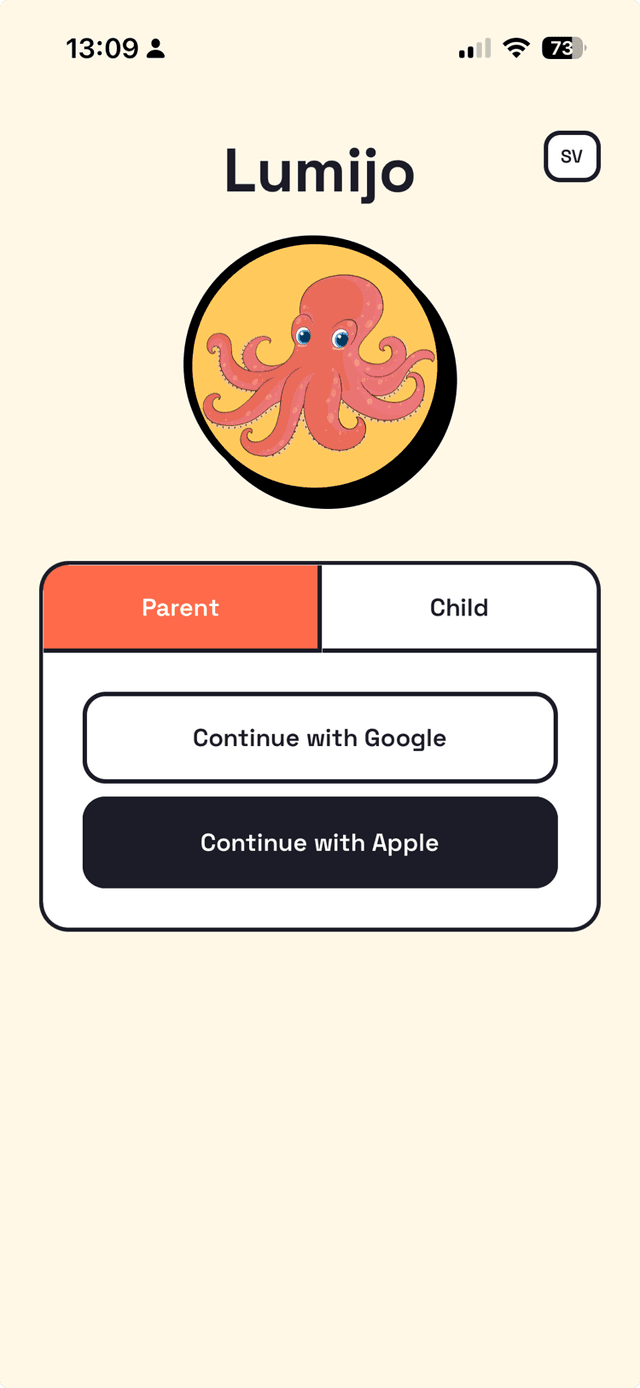
Download & sign up
2

Get started

After signing up, you'll see an overview of how to set things up. Create a child account, share a 6-digit login code, and your child logs in — it's that simple.
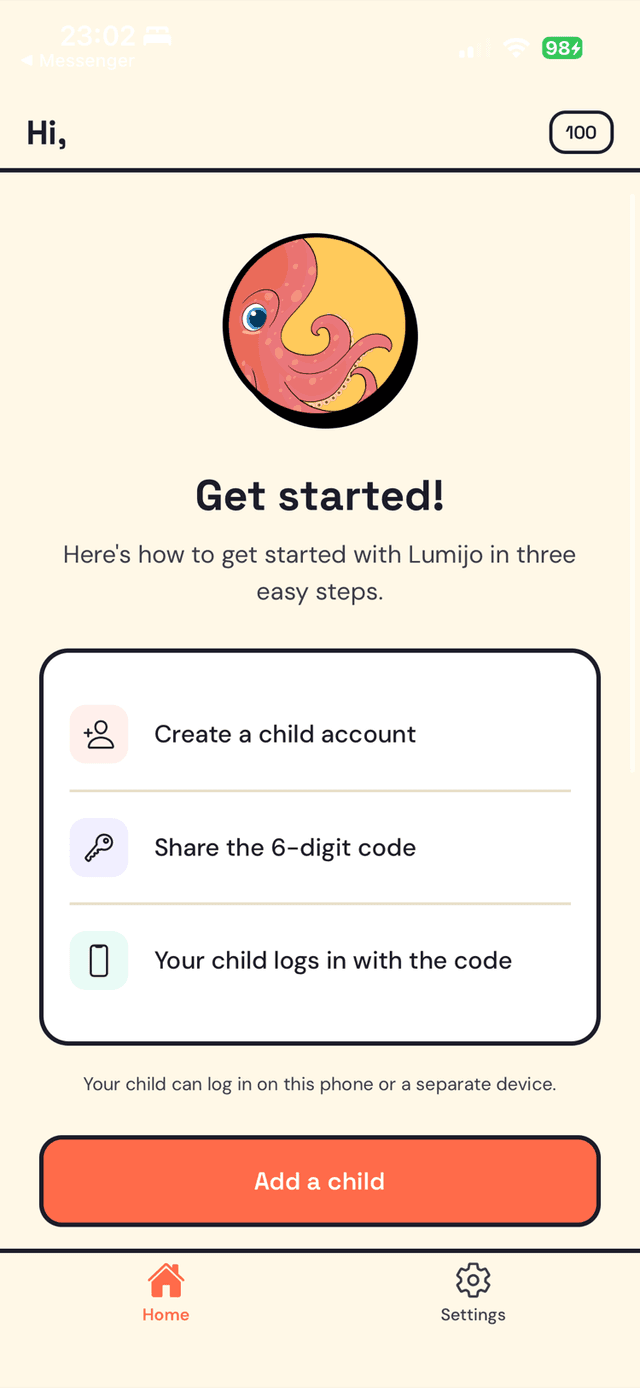
Get started
3

Add a child

Tap 'Add a child' and choose how your child will log in. Same device? Switch directly. Different device? Share the one-time 6-digit code and your child enters it on their device.
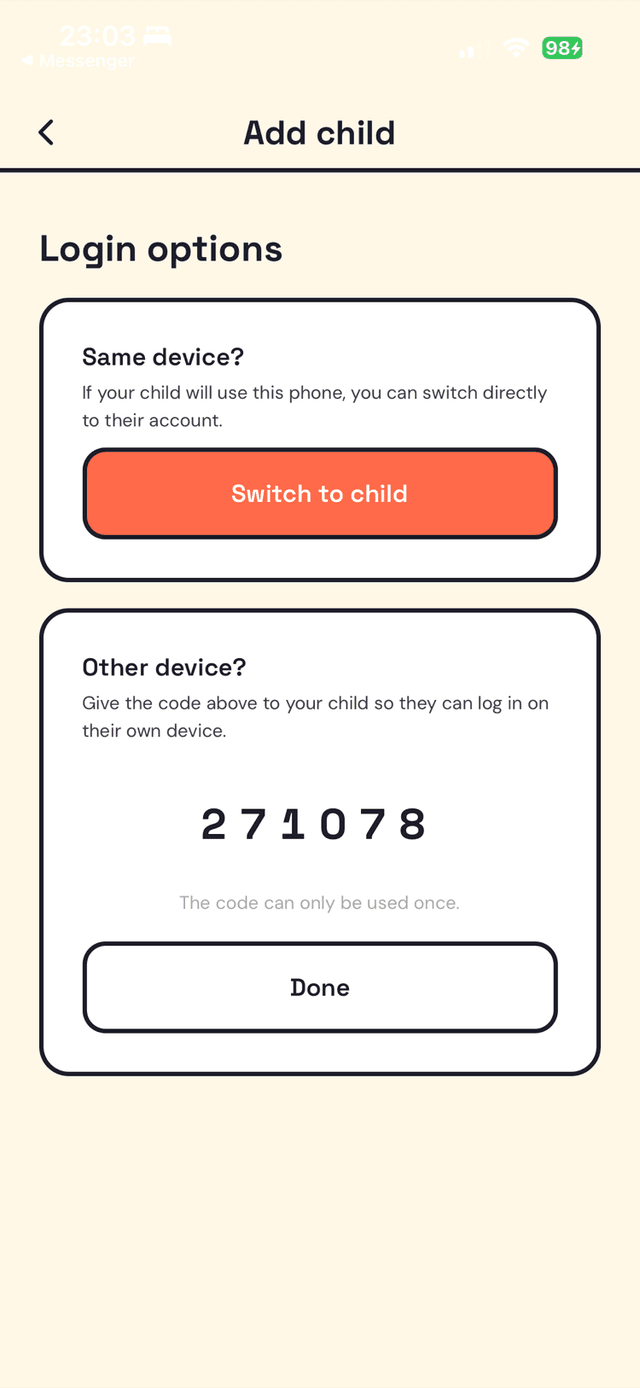
Add a child
4

Add homework

Your child takes a photo of their textbook or worksheet with the camera, or shares a PDF directly from Google Classroom. The AI reads the content and creates the assignment automatically.
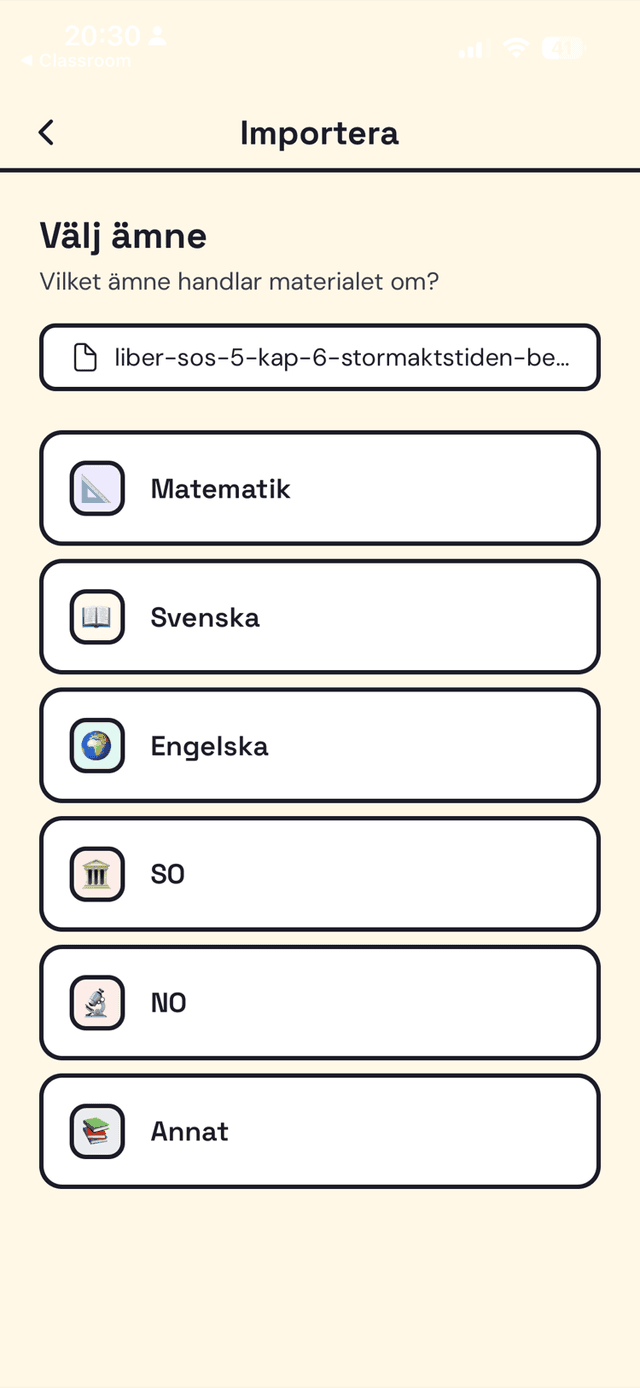
Add homework
5

Learn with quizzes & flashcards

The app generates quizzes, flashcards and fill-the-gaps exercises based on the homework. Your child practises at their own pace and gets instant feedback.
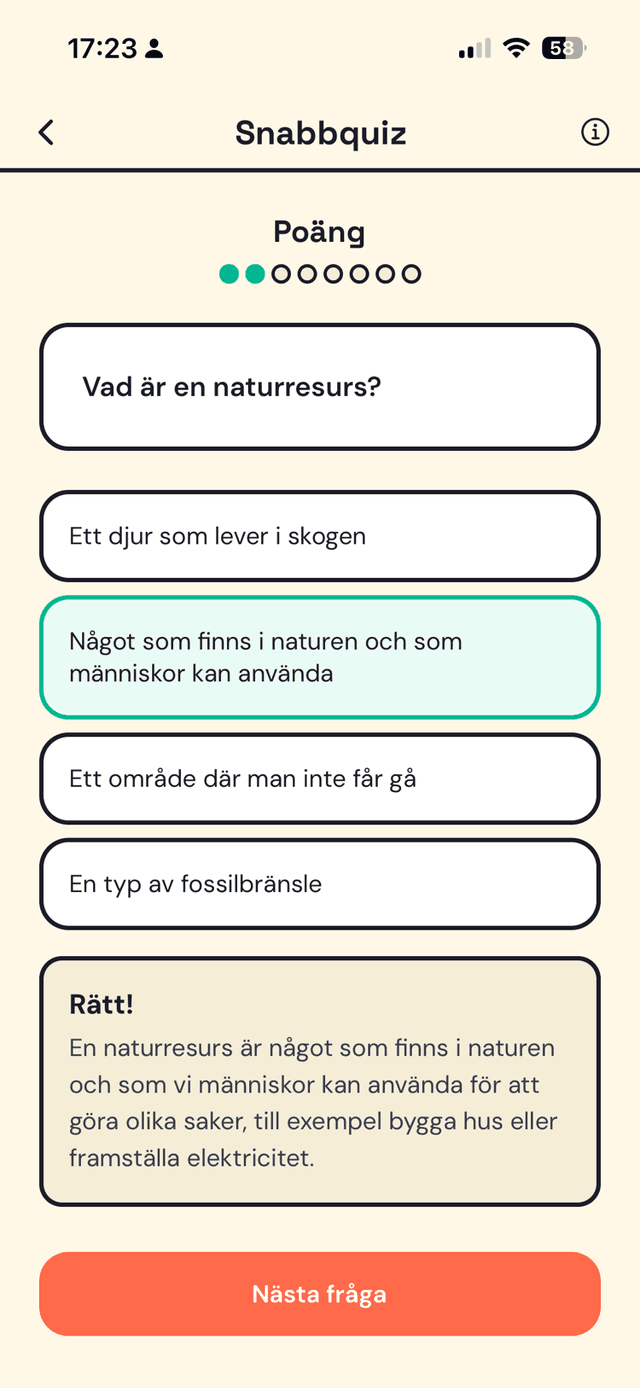
Learn with quizzes & flashcards
6

AI-guided learning

When your child gets stuck, the AI gives step-by-step hints without revealing the answer. Like a patient tutor that guides them to figure it out themselves.
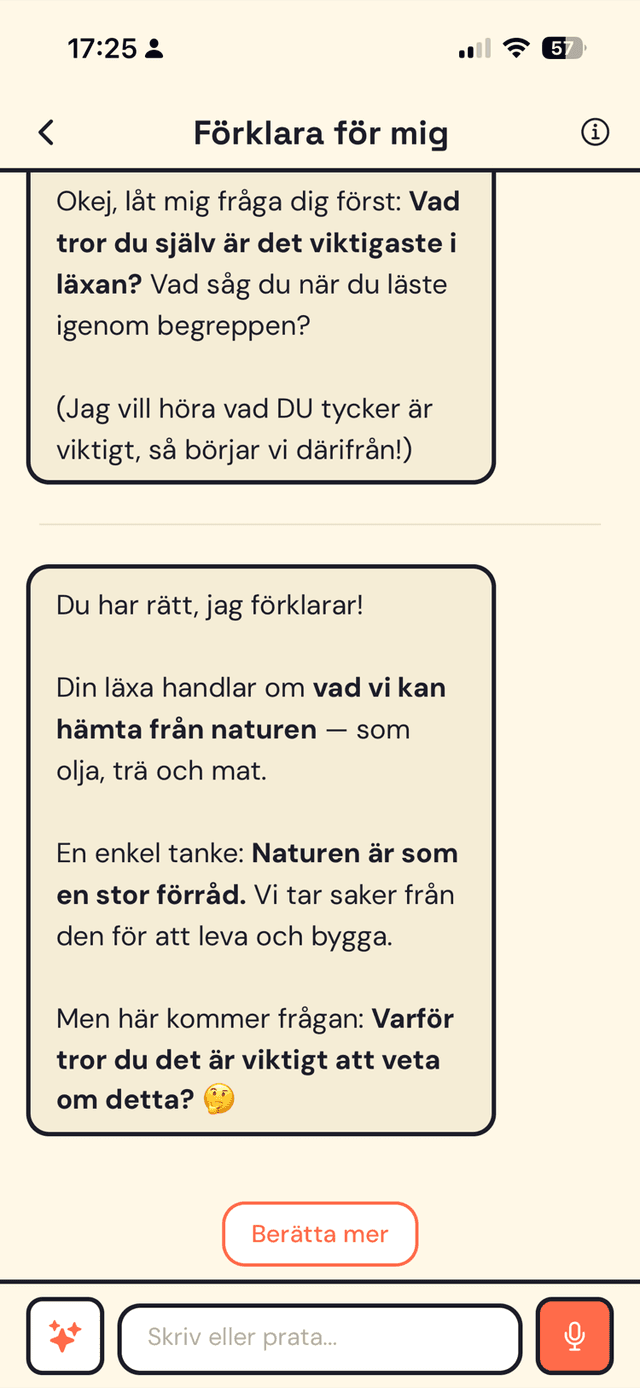
AI-guided learning
7

Discuss & go deeper

Your child can chat with Lumijo to get explanations, ask follow-up questions, or explore topics beyond the homework. Curiosity is encouraged.
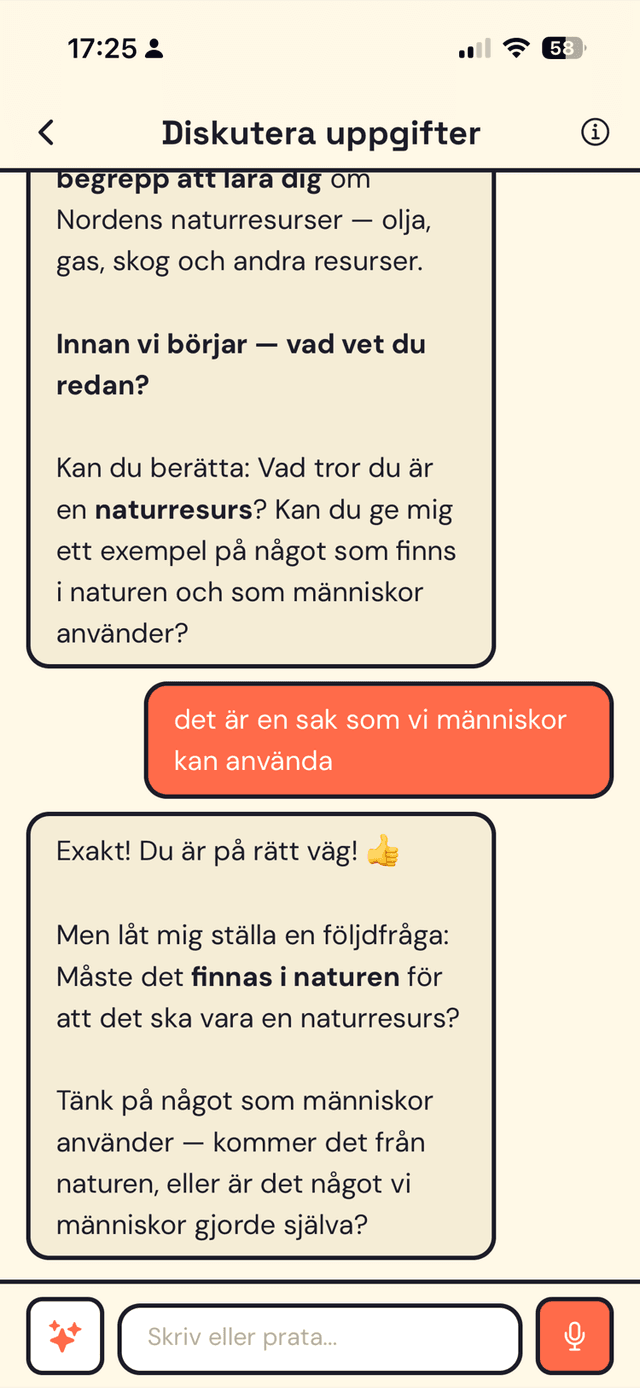
Discuss & go deeper
8

Focus timer

Built-in Pomodoro-style focus sessions help your child concentrate. 25 minutes of focused work, then a short break.
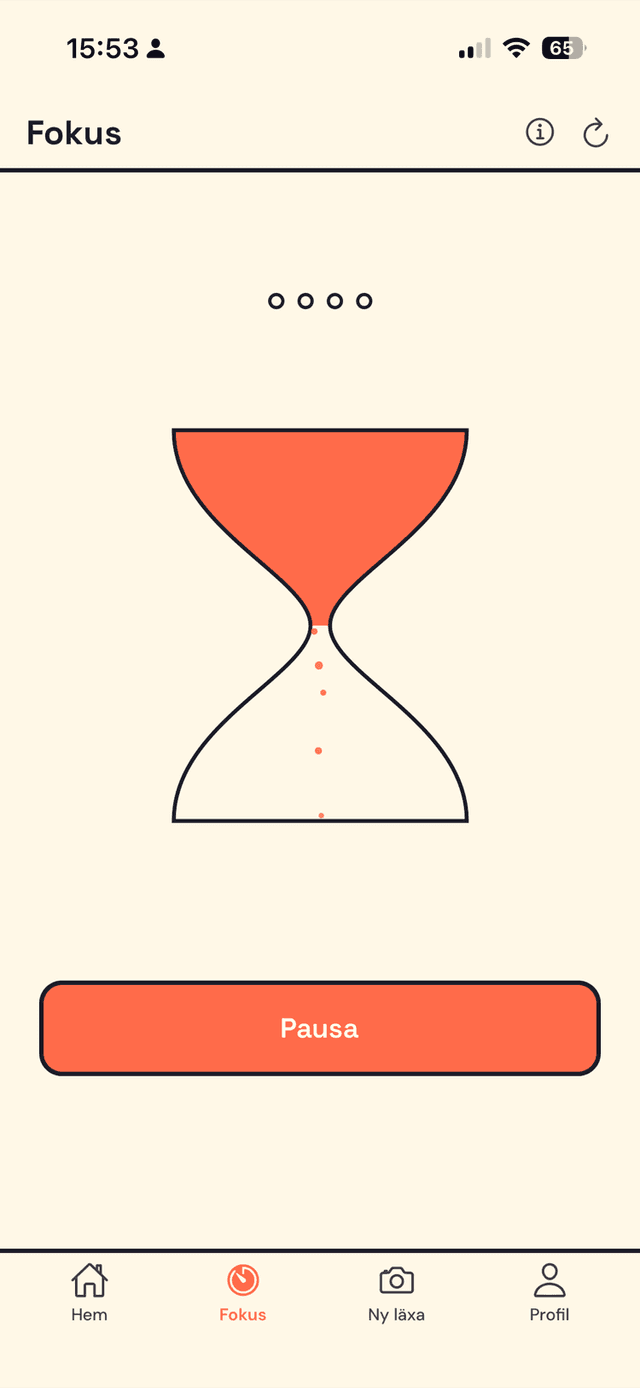
Focus timer
9

Parent dashboard

See your child's progress on every assignment, track deadlines, and monitor credit usage — all from your own device. Add multiple children and switch between them.
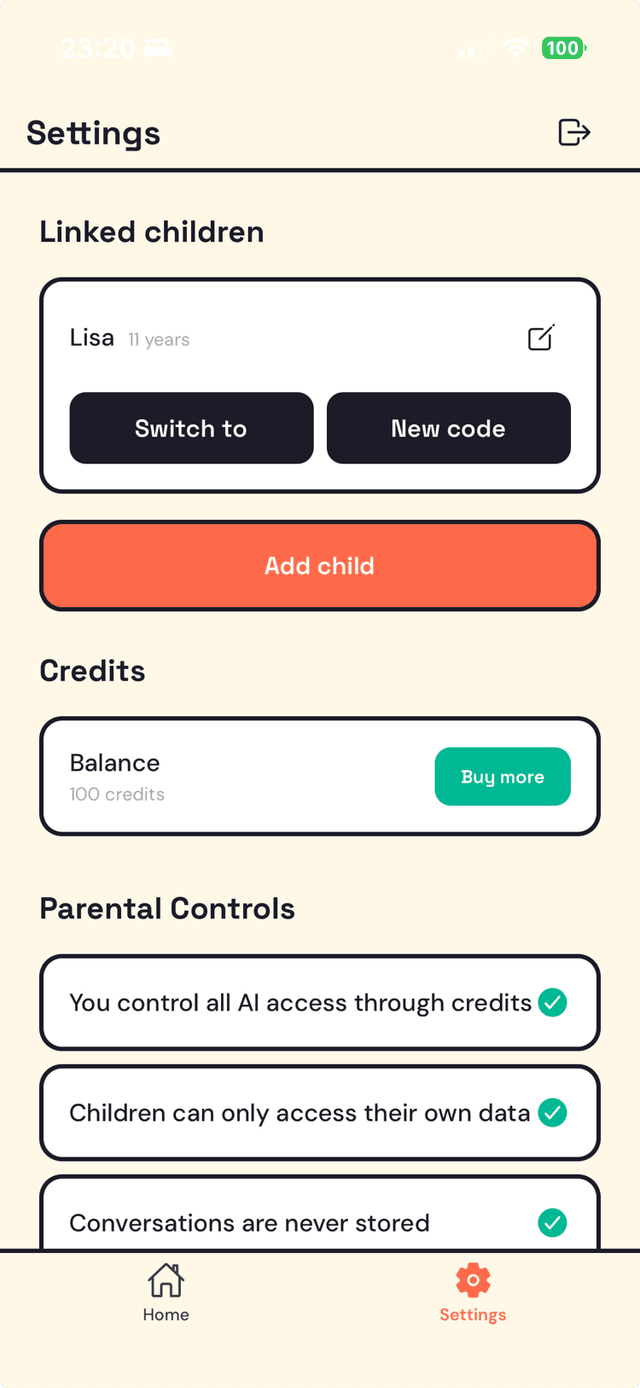
Parent dashboard
Frequently asked questions
Download Lumijo from the App Store, open the app and sign in with your Apple ID or Google account. This creates your parent account. Then go to Profile → Add child to set up your child's profile.
Credits power the AI features in Lumijo. You get 100 free credits when you sign up. Each AI interaction (quizzes, explanations, chat) uses a small number of credits. You can top up credits anytime via in-app purchase. Credits never expire.
Yes. Lumijo is built with children's privacy as a priority. Photos are processed on-device and never stored. AI chat is never saved or used for training. No ads, no data sales. We comply with GDPR. See our privacy policy for full details.
Lumijo works with any subject that has a textbook: Maths, Swedish, English, Science, History, Geography and more. The AI adapts to the content your child photographs or shares.
Make sure the text is well-lit, in focus, and the full page is visible. Avoid shadows and glare. For best results, hold the phone directly above the page. If sharing a PDF, make sure the text is selectable (not a scanned image).
Open the app, go to Profile → Add child. Enter your child's name and age. The app generates a PIN code that your child uses to log in on their device. You can always generate a new PIN if needed.
Yes. Sign in with the same Apple ID or Google account on any device. Your parent account, children's profiles, and credit balance sync automatically.
You can email us at support@lumijo.app or use the contact form on our website. We read every message and typically respond within 24 hours.

Contact support

Can't find what you're looking for? We're here to help.

Email us at

support@lumijo.app

Or use our contact form

Go to contact form →
Lumijo — Homework help for everyone